
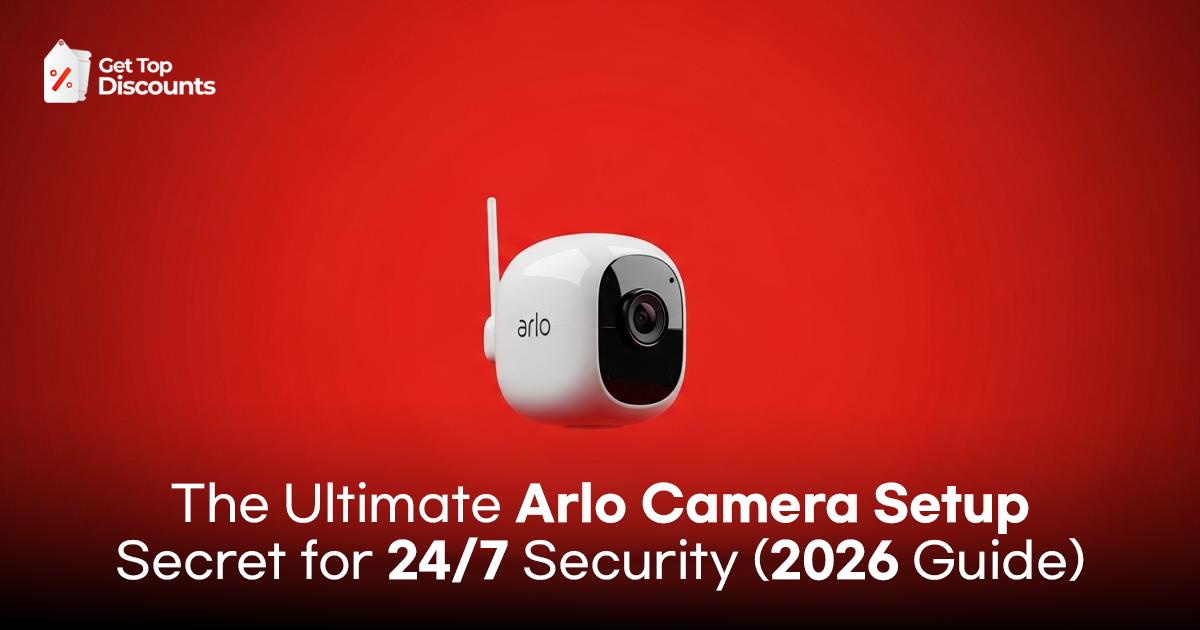
Getting a new security system is an exciting milestone for any homeowner, but let’s be honest – staring at a box of high-tech cameras and a pile of mounting brackets can feel a little overwhelming. If you’re wondering exactly how to install Arlo cameras without needing a degree in electrical engineering, you’re in the right place.
Arlo is a household name for a good reason: They have made professional-level security affordable for everybody. The procedure is meant to be user-friendly regardless of whether you are setting up the traditional Pro series or the more current Essential models.
From unboxing to the first live stream, this thorough guide will walk you through the Arlo camera setup and examine the subtleties of the Arlo base station configuration as well as how to deal with those bothersome Arlo WiFi connection issues en route.
Pre-Installation: Getting Your Ducks in a Row
Before you grab the ladder or start drilling holes in your siding, there are a few “housekeeping” steps that will make your life much easier. Taking ten minutes to prep now will save you an hour of frustration later.
First, you need to decide which path your setup will take. Arlo cameras generally fall into two categories: those that require a SmartHub (Base Station) and those that can connect directly to your home WiFi. Models like the Arlo Ultra 2 and Pro 3 usually need that hub, while the Essential line often lets you skip it.
It is vital to pick the right Arlo camera model first to ensure you have the necessary hardware for your specific home layout. For instance, if you live in a large home with thick stone walls, a Base Station is often the better choice because it creates its own dedicated network for the cameras.
What You’ll Need:
- The Arlo Secure App: Download the Arlo Secure App (Android and iOS).
- Strong WiFi: Have your 2.4GHz network password on hand.
- Full Power: Charge your camera batteries to 100% before starting. Most Arlo cameras use a blue LED to signal they are fully charged.
- Basic Tools: A drill, a Phillips head screwdriver, and a sturdy ladder.
Pro Tip: If you haven’t purchased your system yet, or if you’re looking to add more cameras to your fleet, you can save a significant amount of money by being a savvy shopper.
Always use an Arlo discount code before checkout on the official store to grab bundles that include the SmartHub at a lower price point.
Phase 1: The Arlo Base Station Setup
If your kit includes a SmartHub or Base Station, this is your first real technical hurdle. Think of the Base Station as the “brain” of your system. It controls traffic from your cameras and, in some cases, offers a means to store videos locally on a microSD card or USB drive.
- Connect to Your Router: Directly connect the Base Station to an unused port on your wireless router using the supplied Ethernet cable.
- Power Up: Plug the power adapter into the wall. If your model has an “On/Off” button, give it a press.
- Read the Lights: This is where beginners often get confused. Wait about two minutes. You want to see a solid blue light (on single-LED models) or green lights (on multi-LED models). A station is powered but lacks internet connection if you notice a solid amber light.
- App Integration: Tap the “+” icon, choose Base Station/Hub, then open the Arlo Secure App. The program will find the device on your network automatically.
Phase 2: The Arlo Camera Setup (Digital Handshake)
Now comes the “handshake” between your cameras and your network. This is the stage of the Arlo camera setup where most people encounter hurdles, but it’s straightforward if you follow the sequence exactly.
For Cameras Connecting via Base Station:
Bring the camera within three feet of the Base Station. In the app, select “Add New Device” and choose your camera model. When prompted, press the Sync button on the camera. The LED will blink blue. Once it flashes rapidly, the camera has successfully “shaken hands” with the hub.
For Cameras Connecting Directly to WiFi:
If you are skipping the hub, the app will ask for your WiFi credentials. Note that Arlo cameras almost exclusively use the 2.4GHz band. If your phone is on a 5GHz network, you may need to temporarily switch it to the 2.4GHz band during setup.
The app will generate a QR code on your phone screen. Hold your Arlo camera about 4 to 8 inches away from your phone. When the camera “sees” the code, it will emit a clear chime. This chime is your signal that the camera is now connecting to your home network.
Phase 3: Physical Installation – How to Install Arlo Cameras
Once your cameras are showing up in the app, it’s time to put them where they belong. But here is the golden rule: Don’t mount them until you’ve checked the signal. Take the camera to the intended location and check the “Live Stream” in the app. If the video is laggy or won’t load, you may be facing a range issue.
The Science of Placement
To get the most out of your hardware, follow these industry-standard mounting tips:
- Height: Aim for 7 to 10 feet (2.1 to 3 meters) off the ground. This is high enough to stay out of reach of vandals but low enough to capture clear facial details.
- The 30-Degree Tilt: Tilt the camera down about 30 to 40 degrees. This helps the Passive Infrared (PIR) motion sensor work more effectively.
- The “Cross-Path” Rule: Arlo sensors are much better at detecting motion that moves across the field of view rather than motion coming directly toward the lens. Position the camera so a visitor has to walk across the frame to reach your door.
Mounting Steps:
- Template: Use the mounting plate to mark the screw holes with a pencil.
- Drill: Use a 1/4-inch drill bit for the plastic anchors if you’re mounting into drywall or brick.
- Secure: Screw the mount into the wall and then snap or screw the camera onto the mount.
- Final Check: Use the app to fine-tune the angle.
If you’re still on the fence about whether this process is too complex compared to other brands, it can be helpful to compare Arlo setup with Ring and Nest to see which fits your DIY comfort level. While Arlo requires a bit more “syncing,” its wire-free nature makes the actual physical installation much easier than its wired competitors.
Phase 4: Arlo Camera Troubleshooting & Connection Fixes
Even with the best tech, things can go sideways. If your camera suddenly drops offline or refuses to sync, don’t panic. Most Arlo WiFi connection issues are caused by simple environmental factors.
Dealing with Interference
Materials like brick, concrete, and mirrors are the enemies of WiFi signals. If your camera is mounted on a brick pillar, the signal strength might drop by 50%.
- The Power Cycle: The “turn it off and back on” method works. Remove the camera battery for 10 seconds and reinsert it.
- Router Distance: Ensure your camera is at least 10 feet away from your router to prevent signal “noise,” but no more than 300 feet (line of sight) away.
- The Factory Reset: If a camera is being particularly stubborn, hold the Sync button for 15 seconds until the LED blinks amber three times. This wipes the slate clean so you can start the setup fresh.
General Arlo camera troubleshooting also involves checking your upload speeds. You generally need at least 1-2 Mbps of upload speed per camera to maintain a stable 2K or 4K stream.
Phase 5: Optimization and Long-Term Success
You’ve installed the hardware, but the “smart” part of the camera needs a little calibration. Within the Arlo Secure App, you’ll find tools that prevent your phone from blowing up with 100 notifications a day.
- Activity Zones: Draw digital boxes around your driveway or porch. This tells the camera to only alert you if something happens inside that box, ignoring the swaying tree or the neighbor walking their dog on the sidewalk.
- Smart Alerts: You can toggle specific alerts for People, Vehicles, Animals, and even Packages.
- Modes and Rules: Set a schedule so your indoor cameras turn off when you’re home and automatically “Arm” when you leave for work using the Geofencing feature.
Once the initial excitement wears off, it’s important to keep the system running smoothly. You should learn how to fix common Arlo issues after setup so you aren’t caught off guard if a camera goes offline after a heavy storm or a firmware update. Regular maintenance – like wiping the lens with a microfiber cloth and checking battery levels – will ensure your home stays protected 24/7.
Final Thoughts
Investing in an Arlo system is one of the best ways to secure your home without the need for a professional installer. From the initial Arlo base station setup to the final mounting of the cameras, the process is logical and manageable for any beginner.
By following this guide, you’ve not only saved on installation costs but potentially on the hardware itself by knowing how to find an Arlo promo code or Arlo discount code during your expansion.
Frequently Asked Questions (FAQ)
Installing Arlo is a two-part process: digital and physical. First, use the Arlo Secure App to sync your camera to your WiFi or Base Station by following the on-screen prompts. Once the app confirms a connection, physically mount the camera using the included screws or magnetic base at your desired location.
Start by downloading the Arlo Secure App and creating an account. Plug in your Base Station (if you have one) to your router via Ethernet, or if going direct-to-WiFi, ensure your phone is on a 2.4GHz network. Tap the “+” icon in the app, select your model, and follow the instructions to pair.
You’ll need a high-speed internet connection, a smartphone with the Arlo Secure App, and a 2.4GHz WiFi network. While some models work directly with WiFi, others require an Arlo SmartHub or Base Station to manage the connection and local storage.
Yes, Arlo is widely considered one of the most beginner-friendly DIY systems because most models are 100% wire-free. Since you don’t have to run power cables through walls, the “installation” usually just involves drilling two small holes for the mounting bracket.
For the best motion detection and security, mount your camera 7 to 10 feet above the ground and tilt it slightly downward. Position it so that people walk across the camera’s field of view rather than directly toward it, as this triggers the sensors much faster.
Most Arlo cameras can stay connected to a Base Station or router up to 300 feet away, provided there is a clear line of sight. However, every wall, mirror, or metal object between the camera and the signal source will reduce this distance significantly.
A Hub (SmartHub) is generally better for battery life and security, as it creates a dedicated long-range network for your cameras and allows for local backup. Connecting directly to WiFi is more convenient and cheaper for smaller setups, as it removes the need for extra hardware.
You can use the cameras for live streaming and basic motion alerts without a subscription. However, to save video recordings to the cloud or use advanced AI features like person and vehicle detection, you will need an Arlo Secure plan.
Arlo recommends an average upload speed of at least 2 Mbps per camera for standard models, while 4K cameras like the Ultra series require at least 3 Mbps per camera. If your internet is slow, your video may appear pixelated or laggy.
If you’re looking to expand your system or grab your first kit, you can find the latest Arlo promo codes and exclusive savings at GetTopDiscounts.com. We constantly update our listings so you can secure your home without overstretching your budget!
A secure home is a happy home, and with Arlo, you’re always just a tap away from seeing exactly what’s happening at your front door.